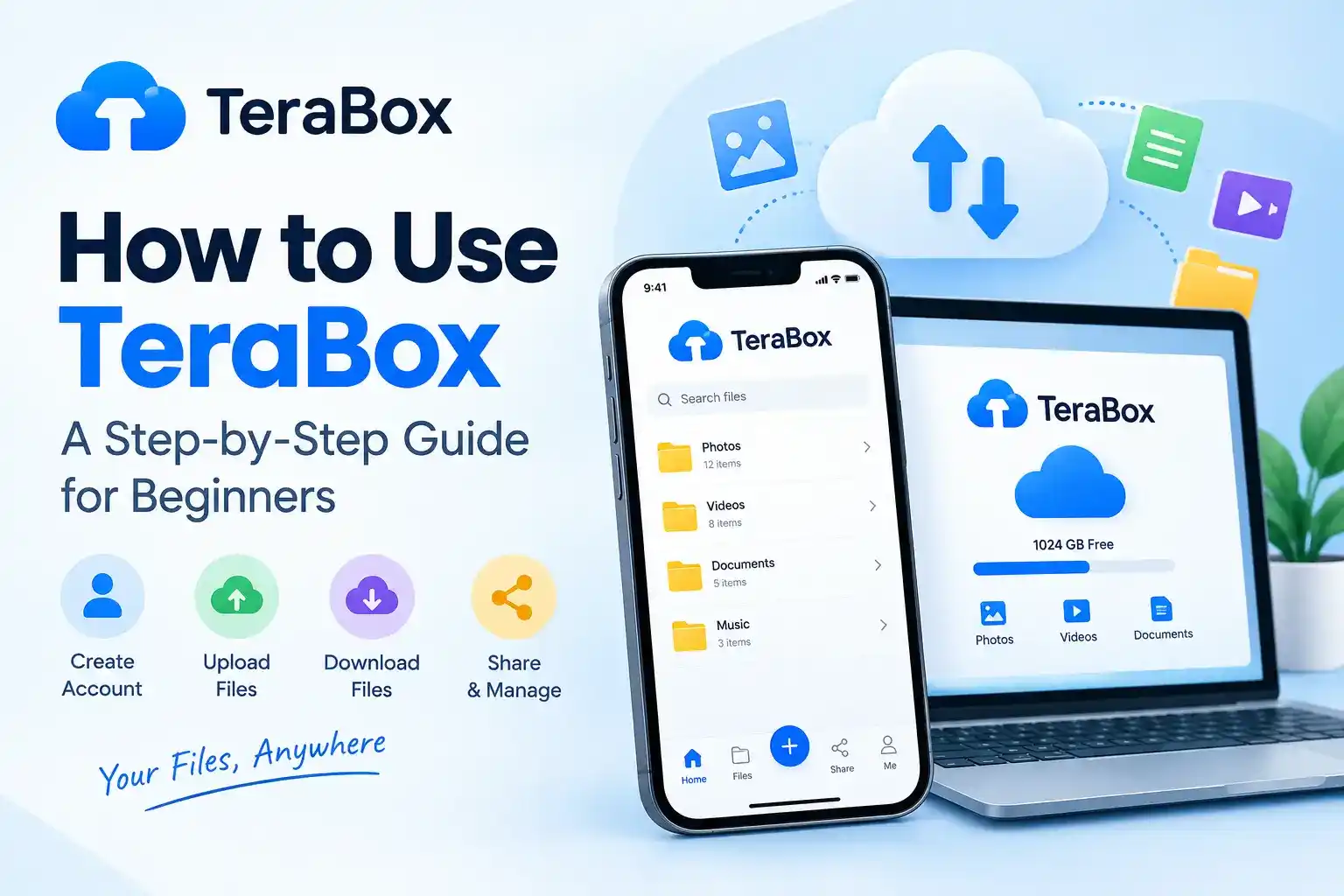
How to Use TeraBox: A Step-by-Step Guide for Beginners.
Note: This is an independent guide. We are not affiliated with TeraBox. Features, plans and limits can change, so check the official app or terabox.com for the latest details.
TeraBox is a cloud storage service that lets you keep photos, videos and documents online so they don’t fill up your phone. This guide walks you through everything a beginner needs: installing the app, uploading files, sharing them and keeping your account safe.
What you need before you start
Install the official app
Download TeraBox only from the Google Play Store, the Apple App Store, or the official website at terabox.com.
Avoid modified apps. Third-party downloads and “unlocked” versions can contain malware, steal login details and are not supported by the service.
Create your account
- Open the app and tap Sign up.
- Choose email or a supported social login.
- Create a strong password that you don’t use anywhere else.
- Confirm your email if the app asks you to.
After signing in you will see your files, shared items and settings. The exact layout depends on your app version.
Upload your first files
- Tap the + button.
- Choose Upload and select photos, videos or documents.
- Wait for the upload to finish.
Tip: Use Wi-Fi for large uploads so you don’t use up mobile data. Speed depends on your connection and your plan.
Organize files into folders
Create folders such as Photos 2026, Work, Study and Family, then move files into them. Clear names make files easy to find later.
Turn on automatic photo backup (optional)
If the app offers automatic backup, you can enable it in settings so new photos and videos upload on their own. Check which folders are included and whether it uses Wi-Fi only. Availability can depend on your plan.
Share a file safely
- Select a file or folder.
- Tap Share and create a link.
- Send the link to the person you want to share it with.
Only share files you are comfortable with others seeing. Delete links you no longer need, and never share ID cards or bank papers through public links.
Use TeraBox on other devices
Sign in with the same account on another phone, a computer, or the web version. Your uploaded files appear there too, so you can continue your work anywhere.
Recover a file you deleted by mistake
Deleted files usually move to a recycle bin for a limited time before they are removed permanently. How long they stay depends on your plan, so open the recycle bin and restore the file quickly.
Free plan vs Premium: what to expect
| Area | Free plan | Premium plan |
|---|---|---|
| Storage | Large free allowance | Higher storage tiers |
| Ads | Shown in the app | Removed |
| Transfer speed | Limited | Faster |
| Recycle bin | Shorter retention | Longer retention |
Compare the current options on the official website before deciding whether you need to pay.
Safety tips for using TeraBox
- Use only the official app and website.
- Choose a strong, unique password and turn on extra verification if available.
- Ignore links that promise free premium accounts.
- Keep a second copy of important files, because cloud storage is not a complete backup.
- Review your shared links from time to time.
Common problems and quick fixes
| Problem | What to try |
|---|---|
| Upload keeps failing | Check your connection, free up phone storage, try again on Wi-Fi |
| Can’t sign in | Reset your password and use the same login method as sign-up |
| App is slow | Update the app, restart your phone, upload fewer large files at once |
Frequently asked questions
There is a free plan with limits and paid plans with extra benefits. Check the official site for current details.
Yes. There is a web version, and desktop apps are offered for some systems.
Safety depends on how you use it. Use a strong password and the official app, and avoid storing highly sensitive files without extra protection.
Use the Google Play Store, the Apple App Store or terabox.com.
Final thoughts
TeraBox is simple once you know the basics: install the official app, upload and organize your files, share carefully and protect your account. Next, read our guides on TeraBox safety and fixing upload problems.